Palettes
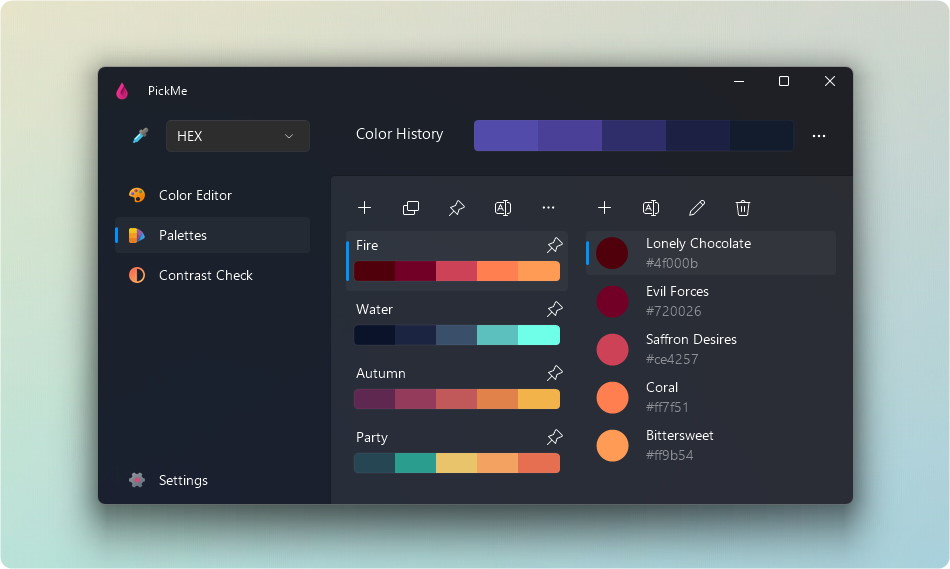
The palette window allows you to organize your colors into beautiful palettes. You can export these palettes to various formats or even create code snippets from them.
Editing Palettes
In this window, you have the power to create and fine-tune your palettes. Effortlessly drag and drop colors from your history into your palettes, or swiftly add new colors using the “New Color” button. The individual colors of each palette can also be reordered by dragging and dropping, or dragged to other palettes.
If you pin a palette, it becomes readily accessible on both the Floating Palette and the Quick View.
Double clicking a color will pick the color.
Import Palette
PickMe supports import from the following palette files: Adobe Swatch Exchange (*.ase), Adobe Color File (*.aco) and Windows Palette (*.pal).
Export Palette
You can export your palette to the following formats:
- Adobe Swatch Exchange (*.ase)
- Adobe Color File (*.aco)
- Windows Palette (*.pal)
- Json file (*.json)
- Image (*.png)
- Text file using the selected color format
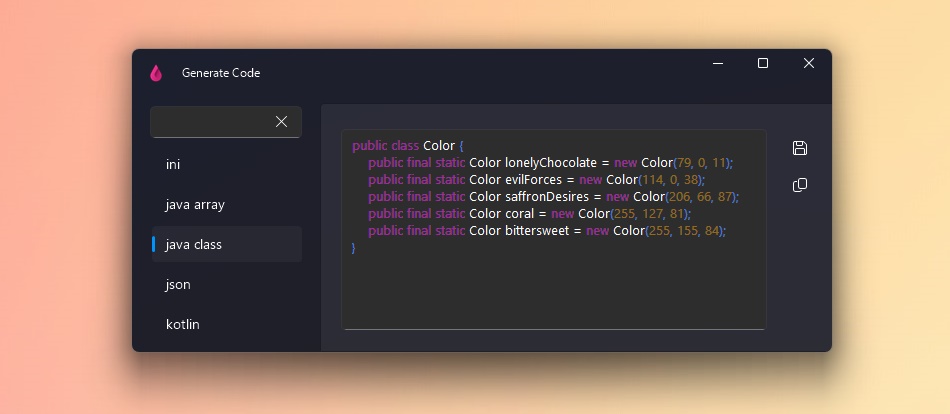
Using this window you can generate code snippets for different languages.