
|
|
|
|
||
ContentGeneral Concepts User Interface
Adjustment Dialogs
Tool Dialogs Other Dialogs
Other |
File Explorer Window
Using the integrated "File Explorer" you can view the graphical files supported by IcoFX (ico, bmp, jpg, gif, cur, png, icns, jp2). The "File Explorer" offers thumbnails of images, so you can easily find a given image. 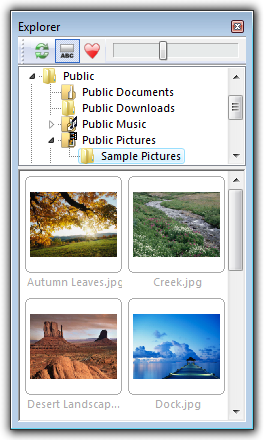 File Explorer Window General The File Explorer Window is divided in three major areas: the toolbar, the tree view and the thumbnail view. On the top of the dialog there is a toolbar. The first button is a refresh button. You can refresh the content of the dialog with it. The second button is the "File Name" button. You can show / hide the file names using this button. With the Favorite folders button you can save shortcuts to folders. Using the scroll bar you can adjust the size of the thumbnails. On the tree view you can select a folder and on the thumbnail view the content of this folder will be displayed. You can select multiple images in the "File Explorer", then right click and you can add them automatically to the Batch Process dialog or you can create an icon library using the Resource Editor dialog. Drag and Drop You can drop images from the "File Explorer" to the IcoFX workspace and they will be automatically converted to icon. You can select multiple images also. In this case they will be all converted to icons. If you drop an image on a window it will be imported as a selection in the given window. If more than one file is selected then only the first file will be dropped as a selection. You can use this technique to create icon from more composite images. Using the "Edit / Bring to Front" and "Edit / Send to Back" menu options this is a powerful technique. You can drag images also on the side bar of a window. In this case a new image will be added to the icon. |
|
|
|
||
| ||
 Ctrl+Alt+E